
Nillkin Backlit iPad Magic Keyboard Case Complete Buying Guide
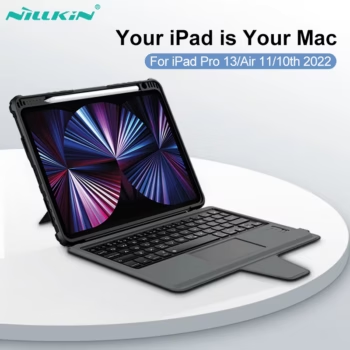
An iPad can be much more than a tablet for entertainment. With the right keyboard case, it can become a compact workstation for writing, studying, business communication, online meetings, research, travel, content creation, and everyday productivity. The Nillkin Backlit iPad Magic Keyboard Case is designed around that idea by combining a protective tablet shell, detachable physical keyboard, multi-touch trackpad, colorful keyboard backlighting, adjustable kickstand, and sliding camera cover in one versatile accessory.
For U.S. shoppers searching for a Nillkin iPad keyboard case, backlit keyboard case for iPad, iPad keyboard case with trackpad, iPad Pro keyboard case, iPad Air keyboard case, Bluetooth keyboard case for iPad, or Apple Magic Keyboard alternative, this Nillkin Bumper Combo design offers an interesting combination of productivity and protection.
The case is particularly useful for people who frequently switch between laptop-style typing and regular tablet use. When you need to write a report, answer emails, work in a browser, or edit a document, the keyboard and trackpad create a more traditional computer-like setup. When you want to read, draw, watch movies, browse casually, or use the touchscreen directly, the keyboard can be detached while the protective case remains around the iPad.
This comprehensive guide examines the Nillkin keyboard case from every major angle, including its backlit keys, trackpad, Bluetooth connection, battery, kickstand, camera protection, device compatibility, Apple Pencil considerations, typing experience, student use, business productivity, travel value, remote-work potential, creative workflows, setup, maintenance, and comparison with other iPad keyboard solutions.

What Is the Nillkin Backlit iPad Magic Keyboard Case?
The Nillkin product belongs to the company’s Bumper Combo Backlit Keyboard Case family. It is a protective iPad case paired with a rechargeable detachable Bluetooth keyboard and integrated precision-style touchpad.
The design attempts to combine several accessories that iPad users often purchase separately. Instead of carrying a standalone keyboard, tablet stand, protective shell, and pointing device, the Nillkin case integrates those functions into a single mobile setup.
A Laptop-Style Setup for a Tablet
When the keyboard is positioned in front of the iPad and the flexible kickstand is opened, the tablet can sit upright much like a small laptop display. The user can type on physical keys and navigate supported iPadOS interfaces through the touchpad.
This arrangement can be particularly useful for documents, email, browser-based applications, research, note taking, spreadsheets, online classes, and meetings.
The iPad Still Remains a Tablet
One of the strongest advantages of the detachable design is that the iPad does not permanently become a laptop. When typing is unnecessary, the keyboard can be removed and the touchscreen can become the primary interface again.
That flexibility helps preserve one of the iPad’s biggest strengths: the ability to switch between touch, keyboard, trackpad, and stylus-based interaction according to the task.
Nillkin Bumper Combo Backlit Keyboard Case Key Features
| Feature | Product Details |
|---|---|
| Brand | Nillkin |
| Product Family | Bumper Combo Backlit Keyboard Case |
| Keyboard Type | Detachable rechargeable Bluetooth keyboard |
| Backlight | 7 colors |
| Brightness | 4 adjustable brightness levels |
| Trackpad | Integrated multi-touch precision-style touchpad |
| Trackpad Feature | Anti-mistouch technology |
| Stand | Flexible multi-angle kickstand |
| Camera Protection | Sliding rear camera cover |
| Keyboard Battery | 500mAh rechargeable battery |
| Charging | USB Type-C keyboard charging |
| Protection | Full-wrap protective bumper-style shell |
| Device Compatibility | Multiple model-specific iPad versions |
| Primary Uses | Work, study, writing, travel, browsing, entertainment, remote work |
Why the Integrated Design Is Useful
A conventional tablet case may protect the device but does not improve typing. A standalone keyboard improves typing but does not protect the iPad. A tablet stand improves screen positioning but adds another item to carry.
The Nillkin system attempts to solve all three problems together while adding a trackpad and camera cover.
Choose the Correct Version
Nillkin produces different cases for different iPad models. The shell, camera opening, button positions, speaker openings, charging-port access, and dimensions must correspond to the exact tablet.
Do not purchase a case based only on the fact that another iPad has a similar screen size.

Watch the Nillkin iPad Keyboard Case Video
A video is especially helpful when evaluating a keyboard case because product photographs cannot fully demonstrate how the keyboard detaches, how the stand changes angle, how the trackpad is positioned, or how the case looks during actual tablet use.
What to Examine in the Video
Look at the keyboard spacing, trackpad dimensions, viewing angles, total case thickness, rear support, camera-cover operation, and how the tablet transitions between keyboard and touch-focused use.
Also pay attention to the amount of desk space required. A kickstand-style keyboard case usually extends farther behind the tablet than a traditional laptop hinge.
Use Video for Design and Specifications for Compatibility
The video can help determine whether you like the overall concept, but it cannot confirm that the case fits your exact iPad. Always verify the model separately.
Seven-Color Backlit Keyboard for Low-Light Typing
The colorful backlighting is one of the Nillkin keyboard case’s most visible features. Nillkin specifies seven available keyboard backlight colors and four levels of brightness.
Why Backlighting Is Practical
A keyboard light can make physical keys easier to identify in dim environments such as airplane cabins, bedrooms, lecture halls, hotel rooms, libraries, and evening workspaces.
It can also allow users to keep surrounding lighting relatively low while continuing to type.
Seven Colors Add Personalization
Some users prefer a simple subdued keyboard appearance, while others enjoy matching lighting to their desk accessories or personal style.
Multiple colors allow the same keyboard to look more professional during work and more colorful during entertainment or casual use.
Four Brightness Levels Provide Better Control
Maximum brightness is not always desirable. A very bright keyboard can become distracting in a dark room. Lower brightness can improve comfort while also reducing unnecessary battery use.

How the Multi-Touch Trackpad Improves iPad Productivity
A trackpad is what separates many laptop-style keyboard cases from basic Bluetooth keyboards. Physical keys make typing easier, while a trackpad reduces how often users need to reach toward the touchscreen.
Navigate Without Constant Screen Touching
When writing a long document, repeatedly moving one hand from the keyboard to the display can interrupt typing rhythm. A trackpad keeps navigation closer to the normal hand position.
Multi-Touch Gestures Support iPadOS Workflows
Nillkin designs the touchpad around iPadOS interaction, including scrolling, swiping, zooming, and other supported gestures.
Actual gesture availability can depend on the iPadOS version and individual application.
Anti-Mistouch Technology Helps During Typing
Nillkin also emphasizes anti-mistouch functionality. This is intended to reduce unwanted cursor movement when a palm or finger contacts the trackpad unintentionally while typing.
Trackpad vs Touchscreen Navigation
The trackpad does not eliminate the need for the touchscreen. Instead, it gives the user another method of interacting with the iPad.
Use the Trackpad for Precision Navigation
It is particularly useful for text selection, browser navigation, document editing, moving a pointer through menus, and scrolling through pages.
Use Touch for Direct Interaction
Touch remains excellent for gestures, drawing, selecting large interface elements, gaming, media applications, and casual browsing.
Use Both According to the Task
The strongest iPad workflow often combines keyboard shortcuts, trackpad navigation, touchscreen gestures, and Apple Pencil input rather than trying to replace one interface completely.
Detachable Keyboard Design Adds Versatility
A detachable keyboard is central to the Nillkin design. A permanently attached keyboard can become awkward when a tablet is being used for drawing, reading, or handheld browsing.
Attach It for Work
Use the physical keyboard when creating documents, writing assignments, answering professional email, editing blog posts, or taking detailed notes.
Detach It for Media
Move the keyboard away when watching movies, reading an e-book, viewing photographs, following a recipe, or browsing from a couch.
Detach It for Drawing
Creative users may prefer more open physical space when working directly on the display with a compatible stylus.
The Protective Shell Remains Installed
Removing the keyboard does not require stripping the iPad out of its fitted protective case. This allows the tablet to remain protected during touch-focused use.

Flexible Multi-Angle Kickstand
Screen angle can make a major difference during long sessions. A fixed viewing angle might work at one desk but become uncomfortable on a different table, airplane tray, kitchen counter, or classroom surface.
Typing Mode
Position the iPad at a relatively upright angle while the keyboard sits in front of the screen.
Viewing Mode
Adjust the stand for movies, tutorials, streaming, or video meetings where typing is less important.
Reading Mode
A different tilt can make long articles, digital textbooks, and websites easier to view.
Sketching Mode
A lower angle can be useful when interacting directly with the display, depending on the selected iPad and stylus workflow.
Why the Kickstand Matters for Video Calls
Remote meetings have become a major use case for tablets. A stable stand allows the iPad to remain at a predictable position rather than being handheld for an entire conversation.
Type Notes During Meetings
The physical keyboard remains available for meeting notes, chat messages, or action items.
Adjust the Camera Angle
Changing the stand position can help improve framing. When possible, place the setup so the front camera is close to eye level.
Use Headphones When Needed
Audio accessories can help reduce echo and improve privacy during calls in shared environments.
Sliding Camera Cover for Protection
Nillkin integrates a sliding camera cover into the protective shell.
Protects the Camera Area From Scratches
The raised rear camera module can come into contact with tables, bags, chargers, and other objects. A closed protective cover helps shield that area when photography is not required.
Provides a Visible Physical Cover
A mechanical cover also gives users an easy visual way to know that the rear camera is physically blocked.
Remember to Open It Before Camera Use
Slide the cover away before taking photographs, scanning documents, recording video, or using rear-camera augmented-reality applications.

Full-Wrap Bumper Protection for an iPad
A keyboard case is carried more often than many desktop accessories. Students move tablets between classes, professionals carry them through airports, and remote workers transport them between home and temporary workspaces.
Protection therefore matters almost as much as typing functionality.
Protective Edges and Corners
Nillkin’s Bumper Combo case wraps around the tablet and uses reinforced construction around vulnerable areas.
Corners deserve particular attention because a device dropped at an angle can concentrate impact forces in a small area.
Protective Back Panel
The fitted rear case helps reduce direct contact between the iPad body and surrounding objects.
No Case Makes an iPad Indestructible
A rugged case may reduce damage risk, but it cannot guarantee survival from every fall, crush, liquid spill, or severe impact. Handle the device carefully even when a protective case is installed.
Military-Style Drop Protection Positioning
Nillkin promotes the Bumper Combo platform with military-grade drop-protection positioning and reinforced corner construction.
What This Means for Everyday Users
The case is designed with stronger protective priorities than a thin decorative folio.
Consider Screen Protection Separately
A compatible tempered-glass or film screen protector can provide another layer of protection against scratches and direct screen contact, provided it does not interfere with the case fit or stylus use.
500mAh Rechargeable Keyboard Battery
The keyboard contains a 500mAh rechargeable battery, which allows it to operate independently through Bluetooth.
Why the Keyboard Needs Its Own Battery
Unlike accessories that draw power directly through a dedicated physical connector, this keyboard operates wirelessly and therefore needs internal power for Bluetooth communication, key electronics, trackpad operation, and backlighting.
Backlighting Affects Runtime
Using colorful illumination at high brightness generally consumes more energy than typing with the backlight disabled.
Adjust Lighting According to Need
During daylight, turning the backlight down or off can conserve keyboard battery. In dark environments, activate it as needed.
USB Type-C Keyboard Charging
The Nillkin keyboard uses a Type-C charging interface.
Convenient for Modern Accessory Setups
USB-C has become common across tablets, phones, laptops, chargers, and accessories, which may reduce the number of different cable types a traveler needs to carry.
Charging Speed Depends on the Complete Setup
Cable condition, charging source, battery condition, and other factors can influence charging behavior. Use appropriate charging equipment and follow the supplied instructions.
Automatic Standby Helps Conserve Power
The keyboard is designed to reduce unnecessary battery consumption after periods without active use.
Wake the Keyboard When Needed
After standby, normal key interaction can return the keyboard to active use according to the product’s operating behavior.
Turn It Off During Long Storage
If the keyboard will not be used for an extended period, follow the product instructions for powering it down and periodically maintaining its rechargeable battery.
How to Pair the Nillkin Keyboard With an iPad
Bluetooth setup is straightforward for most users.
Step 1: Charge the Keyboard
Make sure the keyboard has sufficient battery power before first pairing.
Step 2: Turn On Bluetooth on the iPad
Open Settings > Bluetooth and enable Bluetooth.
Step 3: Activate Keyboard Pairing
Use the Nillkin keyboard’s indicated pairing shortcut or button according to the instructions supplied with the current version.
Step 4: Select the Keyboard
When the Nillkin keyboard appears in the iPad’s list of available Bluetooth devices, select it.
Future Connections Should Be Easier
After successful pairing, the keyboard can generally reconnect to the remembered iPad when powered on and within operating range, assuming Bluetooth settings have not been reset.
How to Improve Bluetooth Reliability
Keep the Keyboard Charged
Very low keyboard battery can cause confusing behavior that may look like a connection problem.
Remove Unused Pairings if Necessary
If Bluetooth becomes unreliable after pairing with numerous devices, reviewing saved connections can sometimes simplify troubleshooting.
Restart Pairing When Needed
If the keyboard is not reconnecting correctly, forgetting the device in iPadOS and pairing again can be a useful troubleshooting step.
Nillkin iPad Keyboard Case Compatibility
Compatibility is the single most important detail to verify before ordering.
Nillkin manufactures multiple Bumper Combo versions because Apple’s iPad lineup contains many devices with similar screen sizes but different dimensions, cameras, buttons, speakers, and charging layouts.
Supported Families Include Multiple iPad Generations
Current and previous versions of the Nillkin family have been offered for selected standard iPads, iPad Air models, and iPad Pro models.
Availability changes as new Apple hardware is introduced, so the current product selector should always be checked.
Do Not Order by Screen Size Alone
Two tablets may both be marketed around an 11-inch display but still require different cases because their physical designs are not identical.

How to Identify Your Exact iPad Model
Check Settings
Open Settings > General > About and review the model name and model information.
Compare the Model Number
Apple model numbers are particularly useful when several generations use similar marketing names.
Compare With the Product Compatibility List
Only select a Nillkin case when the current listing explicitly matches your device generation or model identifier.
Why an Incorrect Case Will Not Fit Properly
Camera Modules Differ
The sliding camera cover needs to align with the rear camera exactly.
Buttons Move Between Generations
Power and volume controls may be positioned differently.
Speaker Openings Can Change
A case designed for another generation may cover speakers or ports.
Tablet Thickness Can Change
Rigid fitted shells rely on precise dimensions.
Never Force the iPad Into an Incorrect Shell
If the case requires unusual pressure or does not align naturally, stop and verify compatibility.
Apple Pencil and Stylus Considerations
Many iPad users combine a keyboard with an Apple Pencil or another compatible stylus.
Useful for Hybrid Workflows
A student can type lecture notes and then annotate a PDF. A designer can write project notes and then sketch directly on the display.
Charging Compatibility Depends on the Device
Apple has released several Pencil generations with different charging methods. The exact iPad, Pencil, and Nillkin case combination must support the intended charging arrangement.
Verify Before Assuming Magnetic Charging Works
Do not assume every Pencil can attach or charge through every iPad case simply because the case includes a Pencil area.
Why Physical Keys Are Better for Long Writing Sessions
An on-screen keyboard is excellent for quick messages and searches but takes up significant display area and provides no traditional key travel.
More Screen Space Remains Visible
When the physical keyboard is active, more of the iPad display can remain devoted to the document or application.
Tactile Typing Can Improve Rhythm
Physical key boundaries help fingers locate positions without looking continuously at the keyboard.
Individual Typing Preferences Differ
A compact tablet keyboard will not feel identical to a full-size desktop mechanical keyboard. Buyers should evaluate whether portability or full-size key spacing is more important to them.
Nillkin Keyboard Case for College Students
Students are one of the most natural audiences for an iPad keyboard case.
Lecture Notes
Physical typing can make fast note taking easier when an instructor is moving through material quickly.
Research Papers
Long assignments become more comfortable when students do not need to type thousands of words on glass.
Online Classes
The stand holds the screen during video lessons while the keyboard remains available for notes or chat.
Switch to Tablet Mode for Reading
Detach the keyboard when reading digital textbooks, reviewing PDFs, or using the iPad as a handheld study device.
Nillkin Keyboard Case for High School Students
Students using iPads for school can benefit from the same combination of protection and productivity.
Protective Design Helps With Daily Carrying
School devices may be moved between backpacks, classrooms, desks, and home environments every day.
Keyboard Shortcuts Can Speed Up Work
Supported applications often include keyboard commands for copying, pasting, searching, formatting, and navigation.
Trackpad Navigation Feels More Familiar
Students already comfortable with laptops may find an iPad easier to use for schoolwork when a trackpad is available.
Nillkin Keyboard Case for Business Users
A tablet can be a powerful business device when common workflows are supported by iPadOS.
Professional Email
Long client messages and business responses are generally easier to compose on physical keys.
Documents and Reports
Word-processing and cloud-based office applications benefit from a keyboard-and-pointer interface.
Presentations
The iPad can be used to review slides, make last-minute text changes, and display presentation material.
Portable Meeting Setup
A keyboard case can create a compact workstation without carrying a separate laptop for every meeting.

Nillkin Keyboard Case for Remote Work
Remote workers often move between home offices, coworking spaces, cafés, hotels, client offices, and temporary work areas.
Integrated Accessories Reduce Setup Complexity
Keyboard, stand, trackpad, and case remain part of the same portable system.
Works Well With Cloud-Based Applications
Email, online documents, project-management platforms, browser applications, communication tools, and cloud storage are increasingly accessible through iPads.
Check Company Requirements First
A keyboard case cannot solve software compatibility problems. Make sure required corporate applications, VPN services, file systems, browser extensions, and security tools work properly on iPadOS before relying on an iPad as your only work computer.
Nillkin Keyboard Case for Writers and Bloggers
Writers often need a portable device that makes long-form text comfortable.
Draft Articles Anywhere
Use the iPad in a café, library, hotel room, meeting area, or home office.
Research With the Trackpad
Browser tabs, source documents, notes, and writing applications can be navigated without repeatedly touching the display.
Use Keyboard Shortcuts for Faster Editing
Copy, paste, undo, select, search, and formatting shortcuts can make editing significantly faster than touch-only interaction.
Nillkin Keyboard Case for Freelancers
Freelancers frequently manage client communication, project notes, content, invoices, research, and online platforms from different locations.
A Compact Client-Meeting Setup
An iPad keyboard case can look cleaner and more practical than balancing a tablet flat on a meeting table.
Useful for Quick Revisions
Text updates, captions, product descriptions, email responses, and webpage edits can be completed without returning to a desktop computer.
Use the iPad as a Secondary Workstation
Even if a full laptop remains the main computer, an iPad keyboard setup can provide a useful backup or travel device.
Using the Keyboard Case for Travel
Travel is another major reason to choose an integrated keyboard case.
Fewer Separate Accessories
A traveler does not need to organize a standalone keyboard and stand separately.
Backlighting Helps in Dark Environments
Airplanes, trains, and hotel rooms can have limited lighting.
The Case Protects During Transport
The bumper shell and camera cover add physical protection while the iPad is inside a bag.
Consider the Added Weight
A rugged keyboard case makes an iPad heavier than the tablet alone. People who care primarily about minimum travel weight should compare it with simpler folio cases.
Using the Nillkin Case on an Airplane
Tray-Table Space Can Be Limited
The kickstand extends behind the iPad, so very small tray tables may offer less usable room than a conventional laptop hinge.
Backlighting Is Particularly Useful
Low cabin lighting is one of the environments where illuminated keys provide practical value.
Detach the Keyboard for Movies
When work is finished, the keyboard can be removed and the stand can continue supporting the iPad for entertainment.
Using the Case for Movies and Streaming
The Nillkin case is useful even when no typing is required.
Adjust the Screen Angle
Use the kickstand to position the display comfortably on a desk, countertop, tray, or table.
Move the Keyboard Away
Detaching it creates additional space in front of the tablet.
Avoid Unstable Surfaces
Always use the stand on a stable surface where accidental movement is unlikely to cause the tablet to fall.
Using the Case for Creative Work
Modern iPads can support drawing, illustration, photo editing, design, music, and video workflows.
Keyboard Shortcuts Can Help in Creative Apps
Applications that support external keyboards can assign frequently used tools or commands to shortcuts.
The Trackpad Supports Interface Navigation
Menus, file browsers, timelines, and application controls can often be navigated more efficiently with pointer input.
Detach the Keyboard for Pencil Work
When direct screen interaction becomes the focus, remove the keyboard and position the tablet more naturally for drawing or annotation.
Nillkin Keyboard Case for Video Editing
Physical Keys Can Improve Timeline Workflows
Supported editing applications may provide keyboard shortcuts for playback, trimming, tool selection, and navigation.
Trackpad Control Can Complement Touch
A pointer can help with certain interface tasks, while touch remains useful for direct timeline gestures.
Use Multiple Input Methods
The real advantage is being able to combine keyboard shortcuts, touch, trackpad input, and Pencil interaction within the same project.
Nillkin Keyboard Case for Photo Editing
Navigate Libraries With the Trackpad
Reviewing large photo collections can feel more computer-like with pointer control.
Use Touch for Direct Adjustments
The touchscreen remains useful for zooming, repositioning, and certain creative controls.
Detach the Keyboard When More Desk Space Is Needed
The removable design means the physical workspace can adapt to the current stage of editing.

Can the Nillkin Keyboard Case Replace a Laptop?
For some users, an iPad with a keyboard and trackpad can handle a significant portion of traditional laptop work. For others, it should remain a complementary device.
Tasks an iPad Keyboard Setup Handles Well
- Email and messaging
- Document writing
- Blog drafting
- Research
- Web browsing
- Online classes
- Video meetings
- Presentation editing
- Cloud-based work
- Note taking
- Basic spreadsheets
- Project-management tools
- Content review
- Social-media management
Tasks That May Still Require a Laptop
Specialized desktop software, advanced programming environments, some professional engineering tools, complex file-management workflows, desktop-only plugins, and organization-specific systems may remain easier or only possible on macOS or Windows.
Evaluate Your Software Before Replacing Your Computer
Hardware accessories can improve input, but they cannot change whether a required application exists on iPadOS.
Nillkin Keyboard Case vs Apple Magic Keyboard
The phrase “Magic Keyboard case” is frequently used by shoppers to describe laptop-style iPad keyboard accessories. However, the Nillkin case is made by Nillkin and is not Apple’s official Magic Keyboard.
| Feature | Nillkin Bumper Combo Backlit Case | Apple Magic Keyboard Category |
|---|---|---|
| Brand | Nillkin | Apple |
| Keyboard | Detachable Bluetooth keyboard | Apple-specific integrated design varies by model |
| Trackpad | Yes | Yes on compatible current models |
| Backlighting | 7 colors, 4 brightness levels | Different lighting implementation |
| Protective Bumper | Strong protective focus | Different protection design |
| Sliding Camera Cover | Yes | Not a defining feature |
| Keyboard Battery | Rechargeable Bluetooth keyboard battery | Different power architecture |
| Keyboard Removal | Detachable | Uses a different attachment system |
Why Some Users May Prefer Nillkin
The Nillkin system places strong emphasis on rugged tablet protection, detachable flexibility, colorful backlighting, and camera coverage.
Compare Workflow Rather Than Brand Name
Price, weight, typing feel, trackpad quality, compatibility, protection, portability, and charging method are more useful comparison factors than simply choosing the better-known brand.
Nillkin Keyboard Case vs Separate Bluetooth Keyboard
A Separate Keyboard Offers More Freedom
You can position a standalone keyboard farther from the screen and potentially choose a larger layout.
Nillkin Offers Better Integration
The protective shell, kickstand, keyboard, and trackpad are designed around one mobile setup.
Choose According to How Often You Travel
A desktop user may prefer separate components, while someone moving between locations may appreciate the integrated system.
Nillkin Keyboard Case vs Basic Folio Case
A Basic Folio Is Usually Lighter
If your iPad is primarily used for reading and video, a keyboard may add unnecessary weight.
Nillkin Provides Much More Productivity Functionality
The physical keyboard and trackpad significantly expand how the tablet can be used for longer work sessions.
Choose According to Your Primary Activity
A keyboard case makes the most sense when writing and productivity are regular parts of your iPad routine.
Function Keys and Keyboard Shortcuts
Physical keyboard controls can reduce repeated touchscreen interaction.
Use Shortcuts Inside Apps
Many iPad applications support commands for copying, pasting, formatting, searching, navigating, and switching tools.
Media Controls Can Be Convenient
Keyboard-based controls can simplify playback or volume adjustment depending on the current key layout and application.
Learn iPadOS Keyboard Shortcuts
Users who become comfortable with keyboard commands can often work more quickly than people who treat the keyboard only as a text-entry device.
Typing Comfort and Ergonomics
A keyboard case can improve productivity, but posture still matters.
Use an Appropriate Table Height
Very low café tables or high countertops can force uncomfortable wrist or neck angles.
Adjust the Kickstand
Position the display so you do not need to bend your neck excessively.
Take Breaks During Long Sessions
Small tablet keyboards encourage a more compact hand position than full-size desktop keyboards.
Use a Larger Keyboard for All-Day Desk Work if Necessary
A portable keyboard case is optimized for mobility. Someone typing eight hours every day at the same desk may prefer a full-size ergonomic keyboard and external monitor arrangement.
How to Keep the Nillkin Keyboard Case Clean
Turn Off the Keyboard Before Cleaning
This helps prevent accidental input.
Use a Soft Dry or Slightly Appropriate Cloth
Remove fingerprints and surface dust gently.
Clean Around the Trackpad Carefully
A clean trackpad surface supports consistent finger movement.
Do Not Spray Liquid Directly Onto the Keyboard
Moisture should not enter the keys, trackpad, charging port, or electronic components.
How to Maintain the Sliding Camera Cover
Remove Dust Around the Slider
Fine particles can accumulate around moving components over time.
Do Not Force the Cover
If the mechanism does not move naturally, inspect it for debris rather than applying excessive force.
Keep the Lens Clean Separately
The cover protects the camera physically, but the lens may still occasionally need gentle cleaning with appropriate optical material.
How to Protect the Keyboard During Travel
Do Not Pack Heavy Objects Directly Against the Keys
Excessive pressure inside a tightly packed bag can stress the keyboard.
Keep Charging Cables Organized
Loose metal connectors can scratch surrounding equipment.
Use a Suitable Bag Compartment
A dedicated padded tablet section can provide another layer of protection during transportation.
Advantages of the Nillkin Backlit iPad Keyboard Case
- Detachable rechargeable physical keyboard
- Seven keyboard backlight colors
- Four adjustable backlight brightness levels
- Integrated multi-touch trackpad
- Anti-mistouch trackpad technology
- Flexible multi-angle kickstand
- 500mAh keyboard battery
- USB Type-C charging
- Sliding camera cover
- Full-wrap protective bumper case
- Suitable for work and study
- Useful for business travel
- Supports laptop-style iPad workflows
- Keyboard can be removed for tablet use
- Useful for video calls
- Can support creative workflows
- Compatible versions available across multiple iPad families
- Trackpad reduces constant touchscreen reaching
- Backlighting supports low-light typing
- Protective case remains installed without the keyboard
Important Considerations Before Buying
- The exact iPad model must match the selected case
- Screen size alone is not enough to determine compatibility
- The keyboard requires separate charging
- Backlighting affects keyboard battery consumption
- A rugged keyboard case adds weight and thickness
- Kickstand-style cases require space behind the tablet
- Apple Pencil charging depends on exact iPad and Pencil compatibility
- It is a Nillkin accessory rather than an Apple-branded Magic Keyboard
- Trackpad gestures depend partly on iPadOS and app support
- Available keyboard layouts can vary by product model
Who Gets the Most Value?
The ideal buyer uses an iPad for more than entertainment and regularly needs physical typing, trackpad navigation, hands-free viewing, and device protection in a portable form.
Frequently Asked Questions About the Nillkin iPad Keyboard Case
What is the Nillkin Backlit iPad Magic Keyboard Case?
It is a protective Nillkin iPad case system with a detachable rechargeable Bluetooth keyboard, integrated multi-touch trackpad, adjustable kickstand, backlit keys, and sliding camera cover.
Is this an official Apple Magic Keyboard?
No. It is manufactured by Nillkin. It serves a similar broad laptop-style productivity purpose but uses its own design and features.
Does the Nillkin keyboard have backlighting?
Yes. Nillkin currently specifies seven backlight colors and four brightness levels.
Can I change the backlight color?
Yes. The backlit version provides multiple selectable colors.
Can the backlight brightness be changed?
Yes. Four brightness levels are specified.
Can I turn the backlight off?
The lighting controls allow users to manage the backlight according to need, including conserving battery when illumination is unnecessary.
Does the keyboard have a trackpad?
Yes. The keyboard includes an integrated multi-touch touchpad.
Does the touchpad support gestures?
It is designed around iPadOS scrolling, swiping, zooming, and other supported multi-touch interactions.
What is anti-mistouch technology?
It is intended to reduce accidental pointer activity caused by touching the trackpad unintentionally while typing.
Is the keyboard detachable?
Yes. Detachable keyboard functionality is one of the main features of the Bumper Combo design.
Can I use the iPad without the keyboard?
Yes. Remove the keyboard while leaving the iPad inside the protective bumper case.
Does the case include a stand?
Yes. The rear kickstand provides multiple viewing angles.
Can I use the stand for movies?
Yes. The stand can support hands-free video viewing.
Can I use it for drawing?
Yes. Removing the keyboard and adjusting the tablet angle can create more space for touchscreen or compatible stylus work.
Does the case protect the rear camera?
Yes. A sliding camera cover is integrated into compatible case versions.
Does the camera cover improve privacy?
A closed physical cover visibly blocks the rear camera when it is not being used.
What battery capacity does the keyboard have?
Nillkin currently specifies a 500mAh rechargeable battery.
How is the keyboard charged?
The keyboard uses a USB Type-C charging interface.
Does the keyboard use the iPad battery?
The Bluetooth keyboard has its own rechargeable battery rather than depending entirely on the iPad for keyboard power.
Does the keyboard automatically sleep?
The product is designed with standby behavior to reduce unnecessary battery consumption during inactivity.
Does the keyboard connect through Bluetooth?
Yes. Bluetooth is used for the detachable keyboard connection.
How do I pair it?
Charge and power on the keyboard, activate pairing according to its instructions, open Bluetooth settings on the iPad, and select the Nillkin keyboard when it appears.
Will it reconnect automatically?
After initial pairing, remembered Bluetooth devices generally reconnect when powered, in range, and available, although settings and operating conditions can affect behavior.
Does the case fit iPad Pro?
Nillkin sells versions for selected iPad Pro generations. The exact supported model must be chosen.
Does it fit iPad Air?
Versions are also offered for selected iPad Air models.
Does it fit a regular iPad?
Nillkin offers compatible Bumper Combo versions for selected standard iPad generations as well.
Can an 11-inch iPad case fit every 11-inch iPad?
No. Tablets with similar screen sizes can still have different outer dimensions, button positions, camera designs, and speaker layouts.
How do I identify my iPad model?
Open Settings, select General, then About, and review the model information before comparing it with the product compatibility list.
Can I use an Apple Pencil?
Compatible case versions are designed with stylus use in mind, but exact charging and attachment compatibility depend on the iPad and Apple Pencil generation.
Is the keyboard good for college students?
Yes. It can make research, lecture notes, essays, online classes, and assignments easier to handle on an iPad.
Is it good for business users?
Yes. Physical typing, trackpad navigation, video-call positioning, and portability can be valuable for common business workflows.
Is it useful for travel?
Yes. It combines several accessories into one system, although it adds more weight than a basic tablet folio.
Can I use it on an airplane?
Yes, although very small tray tables may limit available space because the kickstand extends behind the tablet.
Can I watch movies without the keyboard attached?
Yes. Remove the keyboard and use the adjustable kickstand as a viewing stand.
Is the keyboard comfortable for long documents?
It is designed for portable typing and can be much more comfortable than an on-screen keyboard. People doing full-day desk work may still prefer a larger desktop keyboard.
Does the trackpad replace a mouse?
For many common iPad tasks, it can provide computer-style pointer navigation without requiring a separate mouse.
Can the keyboard case replace a laptop?
It can replace some laptop workflows, but the answer depends on whether all required software and file-management tasks are supported on iPadOS.
Can I edit Word documents with it?
Compatible document applications can use the keyboard and trackpad for text entry and navigation.
Can I use it for Google Docs?
Browser and app-based document workflows can benefit from physical typing, subject to the current capabilities of the relevant application.
Can I use it for Zoom meetings?
Yes. The stand can hold the iPad while the keyboard is used for chat or meeting notes.
Can I edit videos with the keyboard attached?
Yes. Supported editing software can benefit from trackpad navigation and hardware keyboard shortcuts.
Does the case make the iPad heavier?
Yes. Adding a rugged shell, keyboard, trackpad, battery, and stand necessarily increases total weight compared with the bare tablet.
Does the case protect against every drop?
No. Protective cases reduce risk but cannot guarantee that an electronic device will survive every accident.
Should I also use a screen protector?
A compatible screen protector can add scratch and impact protection if it fits properly with the case and does not interfere with your preferred stylus experience.
What should I check before ordering?
Confirm your exact iPad generation and model number, selected keyboard layout, current case color, Apple Pencil compatibility, shipping information, and current package specifications.
Why the Nillkin Backlit iPad Keyboard Case Stands Out
The biggest advantage of the Nillkin Backlit iPad Magic Keyboard Case is how many functions it combines without permanently limiting the iPad to one style of use.
It Makes Long-Form Typing More Practical
A physical keyboard can transform how comfortable the iPad feels when producing substantial amounts of text.
It Adds Computer-Style Pointer Navigation
The trackpad makes many productivity applications feel more familiar to laptop users.
It Adds Flexible Screen Positioning
The adjustable stand supports work, entertainment, browsing, meetings, and creative tasks.
It Adds Low-Light Functionality
Seven-color backlighting with four brightness settings improves key visibility when surrounding lighting is limited.
It Adds Device Protection
The bumper shell and camera cover protect parts of the tablet that would remain exposed with a simple standalone keyboard.
It Does Not Remove the Tablet Experience
The detachable keyboard allows the iPad to return quickly to touch-focused use whenever that interaction method is more appropriate.
How to Decide Whether This Nillkin Case Is Right for You
Choose It if You Frequently Type on Your iPad
Long emails, essays, reports, blog posts, notes, and documents are natural reasons to add a physical keyboard.
Choose It if You Want a Trackpad
Users who prefer laptop-style navigation will likely appreciate having a pointer surface built directly into the keyboard.
Choose It if Device Protection Matters
The Bumper Combo design places far greater emphasis on iPad protection than many thin keyboard accessories.
Choose It if You Regularly Travel
The combination of stand, keyboard, trackpad, and case can reduce the number of completely separate accessories required.
Choose It if You Alternate Between Work and Entertainment
The detachable design makes it easy to move between typing and movie watching.
Consider a Simpler Folio if You Rarely Type
If your iPad is used almost entirely for reading, streaming, and touch-based applications, the added keyboard weight may not provide enough benefit.
Shop the Nillkin Backlit iPad Magic Keyboard Case
If you want to turn a compatible iPad into a more practical mobile productivity workstation while retaining tablet flexibility, the Nillkin Bumper Combo Backlit Keyboard Case is worth considering.
The combination of a detachable Bluetooth keyboard, seven-color backlighting, four brightness levels, multi-touch trackpad, anti-mistouch technology, flexible kickstand, protective bumper shell, sliding camera cover, and 500mAh keyboard battery gives the accessory a broad range of uses for students, freelancers, business professionals, travelers, writers, creators, and everyday iPad users.
Before ordering, identify your exact iPad model and compare it with the current product compatibility list. Do not select a version based only on display size. Also verify the keyboard layout, Apple Pencil requirements, color, current package information, and shipping details.
Check Current Nillkin iPad Keyboard Case Details
Final Thoughts on the Nillkin Backlit iPad Keyboard Case
The Nillkin Backlit iPad Magic Keyboard Case is designed for users who want their tablet to handle more serious productivity tasks without losing the flexibility that makes an iPad attractive in the first place.
For U.S. shoppers searching for a Nillkin iPad keyboard case, iPad keyboard with trackpad, backlit iPad Pro keyboard case, iPad Air keyboard case, Bluetooth keyboard case for iPad, detachable iPad keyboard, or Magic Keyboard alternative for iPad, the Bumper Combo offers a broad collection of practical features.
The physical keyboard is the foundation of the experience. On-screen keyboards remain useful for quick interaction, but they are less comfortable when a user needs to produce hundreds or thousands of words. A physical keyboard provides defined keys, frees more of the screen for content, and supports familiar shortcuts.
The seven-color backlight makes that keyboard more useful after dark. Four brightness levels allow the illumination to be adjusted rather than forcing users to choose between completely dark keys and maximum brightness.
The integrated trackpad is equally important. It changes the way users interact with productivity applications by reducing the need to reach continuously toward the touchscreen. Documents, browser pages, text fields, menus, and supported multitasking interfaces can feel much more laptop-like.
Anti-mistouch technology is intended to make that experience more comfortable by reducing unwanted pointer movement during typing.
The detachable keyboard makes the entire system more flexible than a permanently fixed laptop-style case. When a long document needs to be written, attach and use the keyboard. When a movie begins, move it away. When drawing or annotating a document, detach it and use the screen directly.
The kickstand supports each of those modes by providing multiple viewing angles. A work angle may be relatively upright, while entertainment or drawing can benefit from a different position.
Protection is another major part of the product’s appeal. Many keyboard accessories concentrate almost entirely on typing and leave the iPad relatively exposed. Nillkin’s bumper-style shell continues protecting the tablet even after the keyboard is detached.
The sliding camera cover adds another practical detail. It protects the rear camera area against casual scratches and impact while also giving the user a simple physical cover when the camera is not needed.
The rechargeable 500mAh keyboard battery means the keyboard works independently through Bluetooth. Type-C charging keeps the connection aligned with modern accessory standards, while standby behavior helps reduce power use during inactive periods.
Students are likely to find the system particularly useful. An iPad can move from a digital textbook to lecture notes, research, essay writing, a video class, and handwritten annotation during the same day. The detachable keyboard supports those transitions.
Business users can benefit for similar reasons. Email, cloud documents, browser tools, presentations, online meetings, and communication platforms can become more comfortable with physical typing and pointer navigation.
Writers and bloggers may appreciate having a lightweight portable drafting setup. The iPad can become a distraction-reduced writing machine in a café, library, airport, hotel, client office, or home workspace.
Travelers gain the convenience of combining several functions into one accessory. Instead of packing a stand, keyboard, trackpad, and case separately, the Nillkin system keeps them together.
The tradeoff is additional size and weight. A bare iPad is extremely thin and light, while a rugged keyboard case adds a shell, battery, keys, trackpad, and kickstand. Buyers should decide whether productivity is important enough to justify that additional bulk.
For users who rarely type, a simple lightweight folio may make more sense. For people who regularly produce documents or use the iPad as a work device, the additional functionality can be far more valuable than saving a small amount of weight.
Compatibility remains the most important purchasing step.
Apple has released many iPad generations with overlapping names and similar display dimensions. A case designed for one model may have the wrong camera opening, button position, speaker alignment, or physical dimensions for another.
Always identify the exact iPad in Settings before ordering. Compare the model with the current Nillkin compatibility information rather than relying only on descriptions such as “11-inch iPad.”
Apple Pencil users should perform an additional compatibility check. Pencil generations use different attachment, pairing, and charging methods. A case that accommodates one configuration may behave differently with another.
Users considering the Nillkin case as a laptop replacement should also review their software requirements. The keyboard and trackpad can make iPadOS more productive, but they cannot turn a tablet application into a missing desktop program.
If your work depends on specialist Windows or macOS software, complex desktop extensions, development environments, or corporate tools unavailable on iPadOS, a traditional laptop may remain necessary.
For browser work, email, research, content writing, education, presentations, meetings, cloud collaboration, and many general productivity tasks, however, an iPad with a well-designed keyboard case can become surprisingly capable.
The strongest feature of this Nillkin system is therefore not simply the keyboard or the colorful lighting. It is the ability to make an iPad more useful for serious work while preserving the option to detach the keyboard and return to the direct, touch-first tablet experience.
If your exact iPad is compatible and your routine includes regular writing, research, studying, travel, meetings, or content creation, the Nillkin Backlit iPad Keyboard Case can provide a practical combination of protection, portability, trackpad navigation, and physical typing in one adaptable accessory.